1. Support Center
  2. Write and Publish Reports
  3. Report Writing F.A.Q.
  • Accounts and Billing
    • Username and Password
    • Subscription & Payment Options
    • Referral Program
    • Manage Employee Accounts
    • Email Settings
  • Horizon Mobile
    • Settings and Permissions
    • Troubleshooting Tips
    • Report Writing and Features
  • Company Settings
    • Company Information
    • Contracts
    • Inspection Services and Fees
    • Report Appearance and Branding
  • Schedule Inspections
    • Payment Processing
    • Customizing the Work Order
    • Real Estate Agents & Offices
    • General Tips and Frequently Asked Questions
  • Write and Publish Reports
    • The Basics
    • Templates
    • Report Writing: Recommendations
    • Report Writing: Description
    • Report Writing: Limitations
    • Report Flex
    • Ancillaries
    • TREC
    • Report Writing F.A.Q.
    • Report Publishing F.A.Q.
  • Write Reports using Horizon Mobile
  • Horizon Marketer
  • Action List
  • Report Designer
  • Apps and Integrations
    • Guardian Financial
    • Authorize.net
    • RecallChek
    • Google Calendar
    • Listen360
    • HomeBinder
    • NXT Inspekt
    • Inspection Support Network (ISN)
  • Business Tools & Data Export
    • Business Tools
    • Data Export
  • Training & Support
    • Past Recordings
  • Youtube & FAQ's
  • Announcements & Latest News
    • Past Announcements - 2018 and Older
  • Frequently Asked Questions
  • Resources
    • Extra
  • Work Order
    • Invoice

How do I add a title page photo to my report?

Learn how-to add a title page photo to your report.

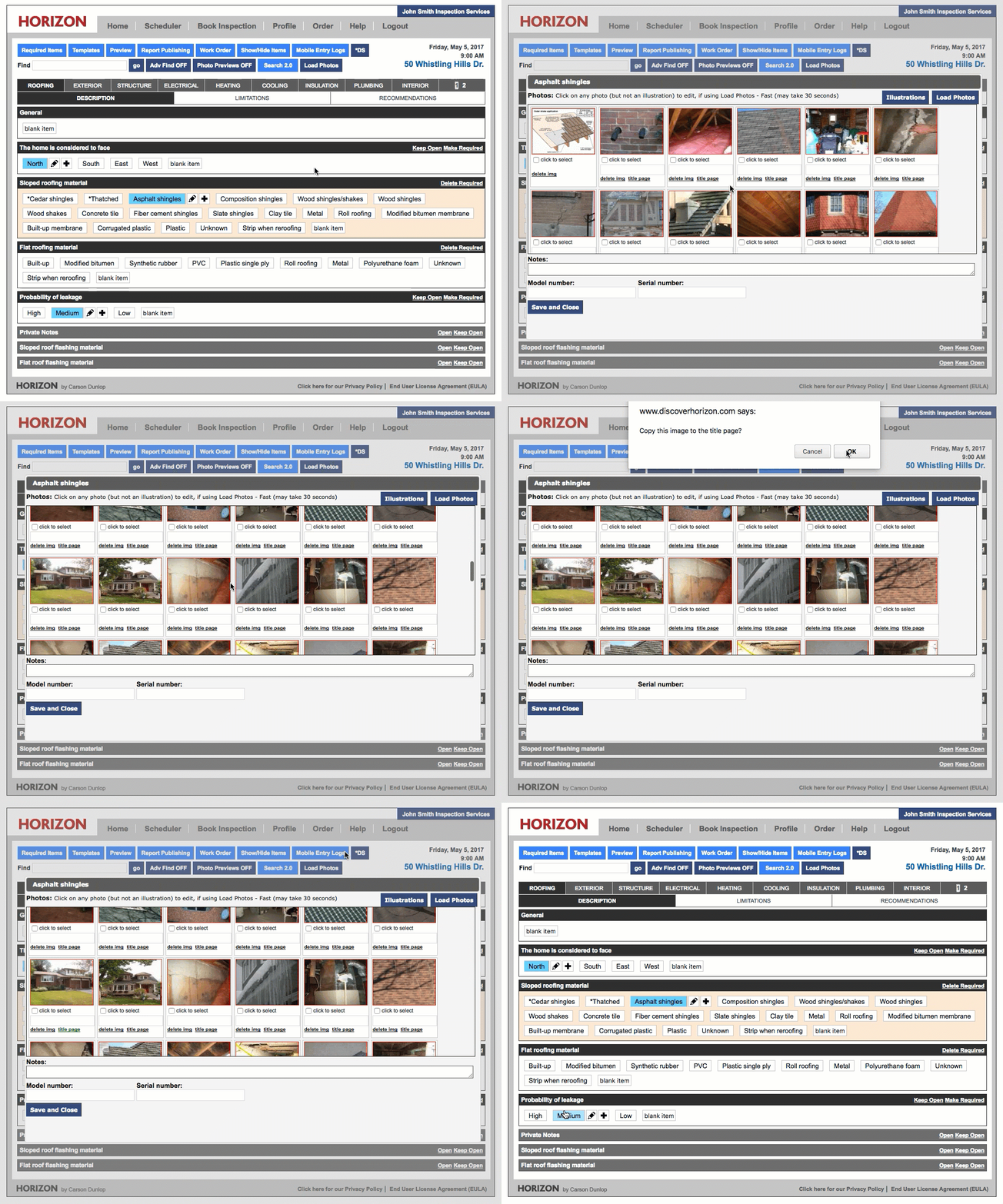
  1. Open the inspection's report writing screen
  2. Click on the Pencil icon beside any of your selected comments
  3. Once the photo gallery loads, find the appropriate photo
  4. Click Title Page beneath the photo
  5. Click OK at the two pop-up windows
  6. Click Save and Close
    Chill listening crop-3

    Reach us by Phone: Monday to Friday 8 AM to 7 PM ET | 1-866-303-7999

    Copyright © 2025, Carson Dunlop